Workstation Upgrades
Research Phase
Started looking into GPU upgrades for LLM work
Initial Purchase
Ordered RTX 5070 Ti ($872) and PSU ($163)
Full System Rebuild
Microcenter visit - AMD Ryzen 9, new mobo, 64GB DDR5 ($2,915 total)
Setup & Configuration - occasional freezes
System assembly, OS install, testing
LLM Testing - Dealing with crashes
Running local models with LMStudio and Ollama
HoodRiver > upgraded and reused components
Newer CPU, Motherboard, PSU and SSD are added, DDR4 sticks are in use
Six Month Review
Reflecting on performance gains
Earlier, I documented my journey of computers in this post which sets the stage for this upgrades post. Essentially I have one main workstation where I work on personal projects, keeping up with friends, family, correspondence, multi-media editing, coding/deploying and working on side projects, and it serves as the main sync source across my devices. There are two main boxes at this time, which I named TURING and HOODRIVER. Both boxes are pictured in the other post; here I will talk about the recent upgrade story.
TURING
The last major update on this system was around 2018, a self-built system with components I purchased from either NewEgg, Amazon or Microcenter. Building was gradual as the GPU was added later and hard drives came and went. I delicately upgraded the memory to 64 GB of RAM (4 sticks - DDR4) from 32 GB of RAM (4 sticks DDR3 1333 MHz - Fujitsu). The previous build was around late 2012 and early 2013 with a brand new case and such. I didn't skimp on the CPU which I am glad I didn't over the years as it kept being fast and handled the things I threw at it. I also installed an Nvidia GeForce Hydro GFX GTX 1080 Ti Liquid Cooled Graphics Card which allowed me to run multiple monitors and play a few games back then.
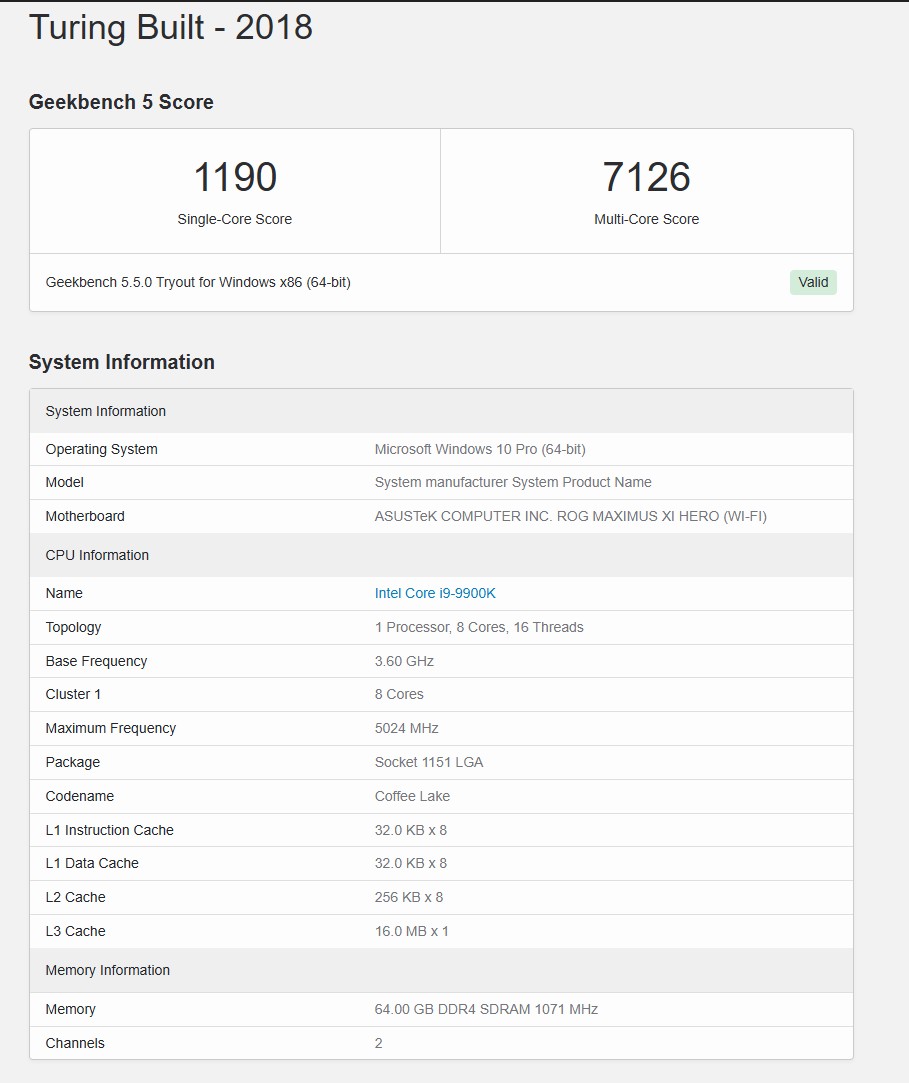 Turing 2018 specs via Geekbench
With Windows 10, this system had been solid, no cold freezes, unexpected reboots, but the case had a few issues. The reset button would get stuck during a restart and it would be rebooting perpetually. The first time this happened, I thought I fried the system, then I realized it. Delicately I lifted the button, and it booted fine. I don't remember upgrading the motherboard firmware and overclocking the RAM or such on this; once the OS is up, I don't check motherboard firmware updates. Mostly OS and GPU updates. The regular internal 3.5" HDs had to be replaced either for block errors or changing storage needs. I could have been using this case if Windows 10 were still getting updates, but it was showing some signs of age with rendering video in DaVinci Resolve for example, but still no crashes, slow but reliable performance.
Given my recent interest in running LLM models locally, I could first-hand feel the sluggishness of the LLM behaviors. To remedy that, the first upgrade option was the GPU. As with all the AI hype, component prices have been quite high, more on that later, but the GPU I found and thought had good specs was an Asus GeForce RTX 5070 Ti OC Edition with GDDR7 16 GB of RAM which I ordered from Amazon. That was somewhat comparable to the GPU I paid for in 2019 or so. The power consumption was a concern; the chatbot I used to check specs told me to upgrade the PSU since it is over 8 years old. I recall I had a decent 800W PSU back in 2018, but reluctantly agreed and ordered a Corsair RM1000e ATX for $163 from Amazon again.
On a late weekday, the GPU and PSU arrived. Somewhat hastily I turned off the system and opened the Obsidian 800D (this case is very easy to work on - originally purchased in August 2012, over 13 years old ). It was relatively easy to swap the PSU in terms of moving it to its slot; however I didn't pay attention to the direction of the CPU and motherboard cabling which caused the constant reboots without posting anything. And the amount of cabling the PSU arrived with really confused me. I connected everything along with the GPU, PCI-E, CPU, and Motherboard cables.
With high hopes, I powered up the system. It would boot up, no post, the CPU and fans were turning but no post on the screen. I didn't investigate it much and given some time crunch and lack of confidence (honestly overwhelmed with the PSU cabling), I also thought of the possibility that I could be damaging something. I decided to schedule an in-person visit to Microcenter the next day evening. The box was also serviced there sometime ago, and it had their sticker so I should be alright. Honestly so glad they are somewhat close by - 40 minutes from where I live.
At Microcenter, I changed my mind about waiting on the CPU/Motherboard/RAM upgrades. Now that I was there, I decided to do all that in one go and asked for:
- a new CPU (possibly AMD - not top of the line, but top of budget hopefully)
- a new Motherboard (with ample USB/SATA connectors)
- a new set of DRAM Sticks (DDR5 here we come, I wanted to have 128 GB but was talked down to 64 GB)
- a new case (I liked my Full-tower Obsidian 800D case, but the stickiness of the button plus the finicky SATA board connectors, I have accepted the upgrade option)
| Component | Cost |
|---|---|
| TeamGroup T-CREATE EXPERT 128GB (2 x 64GB) DDR5-6400 PC5-51200 CL42 | $1,627 |
| ASUS GeForce RTX™ 5070 Ti OC Edition 16GB GDDR7 GPU | $872 |
| AMD Ryzen 9 9950X3D Granite Ridge AM5 4.30GHz 16-Core Boxed Processor | $541 |
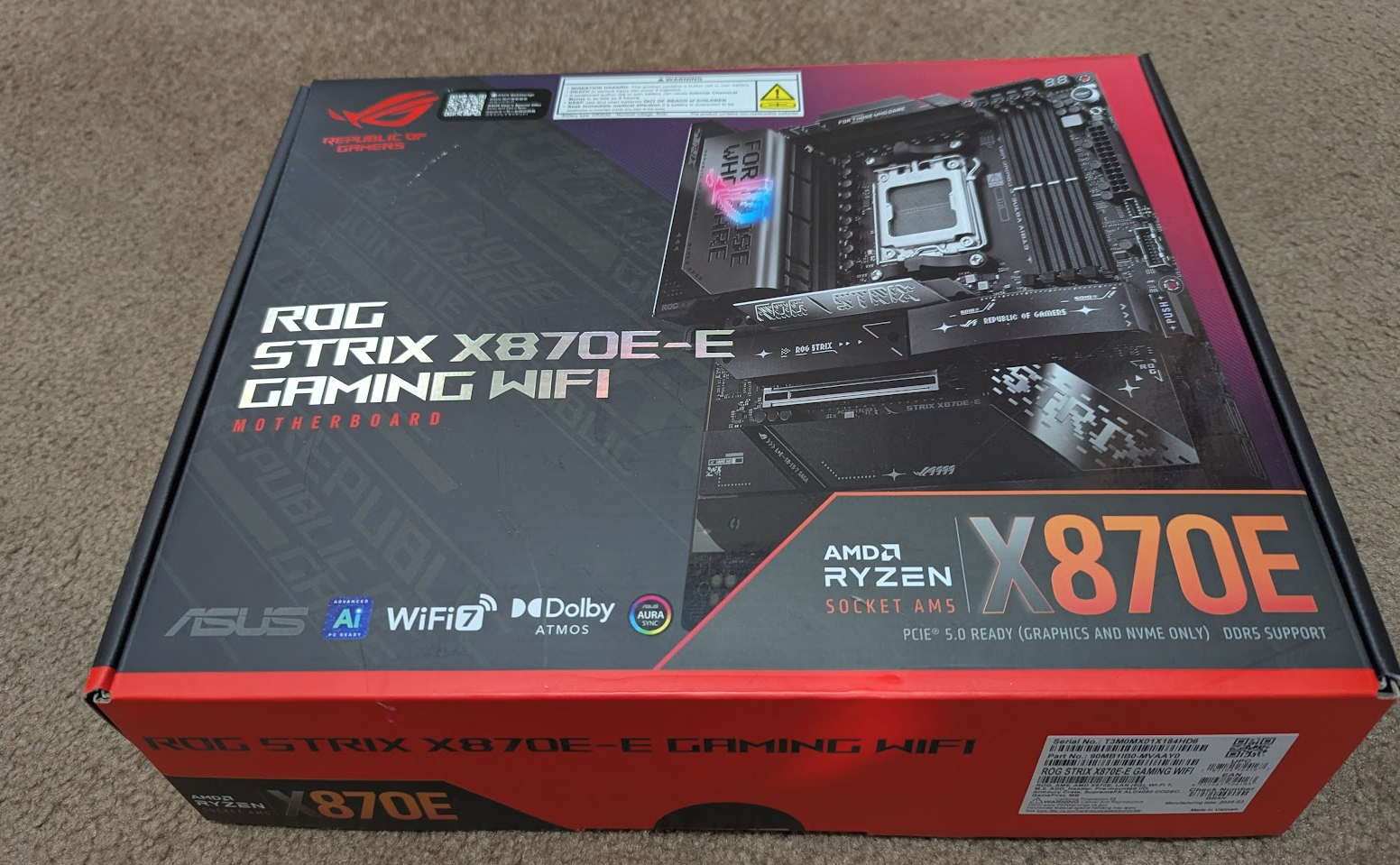
| ASUS X870E-E ROG Strix Gaming WiFi AMD AM5 ATX Motherboard | $410 |
| Fractal Design Define 7 XL Tempered Glass eATX Full Tower Computer Case | $250 |
| CORSAIR RM1000e Fully Modular ATX Power ATX 3.1 & PCIe 5.1 | $163 |
| Samsung 990 EVO Plus 2TB Samsung V NAND TLC NAND PCIe Gen 4 x4 | $140 |
| Arctic Cooling Liquid Freezer III Pro 360mm | $130 |
| Vantec 5-Port SATA III 6Gbps PCIe x4 Host Card | $50 |
| Total: | $4,183 |
Microcenter had package deals, saving me a few bucks but I also dished out a $300+ installation fee which I initially regretted but it saved me time and headache down the line, especially since I was not planning on installing a new OS, hoping for a slow Windows 10 → Windows 11 upgrade, but we had changed the CPU architecture from Intel to AMD. I was told that a fresh install was the best way. Reluctantly I agreed, but purchased another NVMe stick (2 TB) for the OS install.
I left the parts at the store and got a ticket; the tech would be working on that tomorrow. That was on October 19, 2025. I came home.
The next day, we started conversing.
Hey Baskin, this is Bob* from Micro Center here just reaching out about the build you had us assembling. We recommend re-installing the operating system on your machine as you are substantially changing your hardware; there is a very high likelihood of running into problems if we don't. That would mean that everything on the operating system would be wiped out. Was there anything important on there?
I don't know, I was not ready for my system to be wiped out. I said a big "No", but opted to get another boot NVMe drive. After a few back and forths, I headed to the shop, and decided to go with the OS install and have them check the configuration and such. The tech was having a hard time seeing my high capacity drives, especially the 14 TB one. At one point he went back to see if the drive was any good, which checked out fine. It was the SATA cables I had from the previous system. I guess the new motherboard didn't like those. After updating those, it was picking up the SATA drives. But overall things looked promising and I could take things from there. I paid for the services and parts, and left the store.
Coming back home, the first thing I noticed was the boot was taking longer. I opened the case; this time I replaced the SATA cable on another SATA drive since that was not coming up. After that, it seemed fine. A few hours later, I installed a boatload of programs, configured the settings, keys, git, command line tools, development, and multi-media editing. Most of my data files are on large capacity hard drives.
Outside of the OS boots, things felt stable. Then I installed Docker and Winamp, and was cheerfully playing music when the first freeze happened. It is such that you cannot use the keyboard and mouse, a total freeze. Didn't feel like it was recoverable.
I updated all the drivers as much as I could, AMD, NVidia, ASUS motherboard. But still it would freeze up. This kind of made me sad since I made the investment to upgrade this system and I was left with a less stable system, but the specs were good.
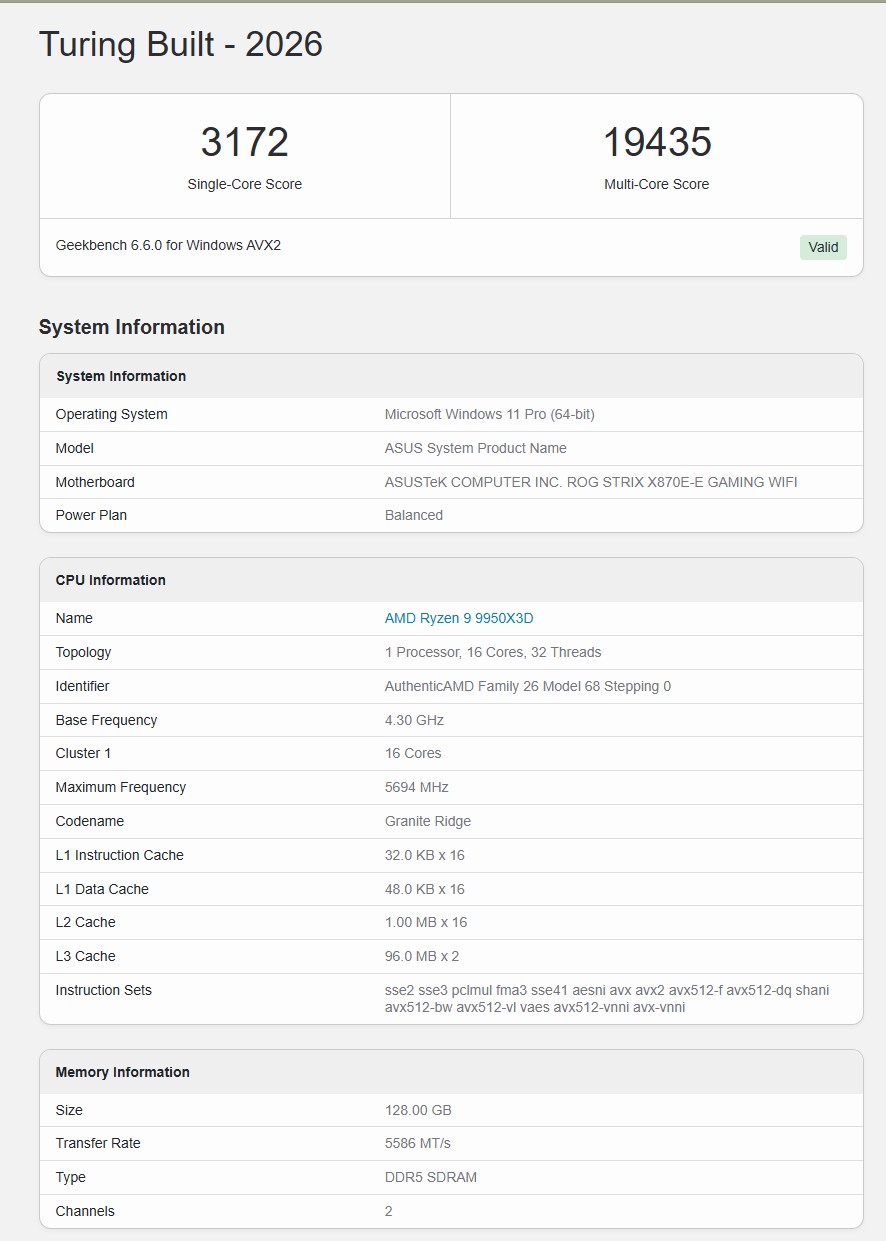 Turing 2026 specs via Geekbench
And the crashes started happening every other day, or sometimes daily as I worked on a feature on the computer. I kept updating - I read the Windows 11 update troubles online and tried to make sense of it, but when the freeze happened, there was no visible trace, no log entry whatsoever. Meanwhile, I was itching to get the RAM to 128 GB and with the RAM prices being what they are, I saw another 64 GB stick pair from NewEgg. Even though it was the same brand, the CAS Latency speeds were not the same (30 vs 40). I could see in the BIOS I had 128 GB, but the OS was stuck in rebooting. Yikes!
Already done. Had to RMA the sticks back to NewEgg, and went back to Microcenter this time with a request to troubleshoot the crash issue, plus get similar CAS Latency sticks. The price of the two sticks since I bought them in October has more than doubled now. As I arrived at the checkout, the guy at the counter was a bit off - first he could not find my appointment. Funny, I even had a text on my phone with date/time shown, but he got me. He said it was not suggested to add more sticks to this build as the build becomes less stable and won't achieve the DDR5 suggested speeds. I looked this up and he was right. The option was to return the 3-4 month old Corsair sticks with another 64 GB x 2 sticks - recommended TeamGroup T-CREATE EXPERT 128GB (2 x 64GB) DDR5-6400 PC5-51200 CL42 for a whopping $1500. Oh boy, I was in for a treat. Thanks AI Boom! Time to sell an organ; luckily there was a clinic nearby where I could sell my kidney... Nah, it didn't get that far yet, but I reluctantly approved. I also pushed them to buy my existing sticks which they did, but only compensated me for what I had originally paid. That is how it goes. Fine.
And of course, they could not install the new sticks. I opened the case and swapped them out and did a few dances with the sales people and returned and credited for the older sticks.
Then back to the tech desk where they pulled my system in queue for check-up. The store opens late; I know the tech guys start their day later, around noon. I sent a text to see what they would find.
Microcenter: Your device is on a technician's bench and diagnostics have begun.
Baskin: Hi Alice, just called in to your store number and I was told I could text you back here. Really would like an update on this BIOS boot problem. FYI, even with the 64 GB of RAM I had earlier, it was getting stuck in the BIOS and I can get it to boot to Windows by using Del - F1 - F7 and exit without saving. Let me know where you are at. I didn't update the BIOS directly but the OS and NVidia drivers should be up-to-date, along with AMD software. Also, I quite often found the system either won't wake up (frozen) or freeze while I am working - this has happened over 20+ times according to my logs since early December. I thought it was a faulty SATA cable since those cables didn't look to have good connections.
Microcenter: Thank you for the information. I did have one test crash but I am trying to rerun it now and most of the other testing has passed without issue. I will check in before the end of the day regardless but the testing on this may run into tomorrow. I will keep working at it and let you know as soon as I know more. I am still getting crashes on the RAM test but I am trying to isolate the source as it is still happening with test RAM. Other than the RAM profile that I have not fully worked out yet, the consistent factor seems to be the current operating system as I am getting some of the failing tests to pass in a test operating system. Have the issues you have been running into always been there, started abruptly, or have gotten worse over time?
Baskin: Understood, the OS didn't have any issues with a few short tests I did. Also note that I am running Postgres/SQL Server/MongoDB databases along with Docker, Ollama, LMStudio. Some of my folder locations in hindsight may not be ideal. But if you can get the BIOS reboot stable and have Windows boot up fine consistently on every power down/up, I can revisit my configuration. But total freeze of a system, cannot move anything during use or won't wake up...
Microcenter: With the RAM profile turned off, the system is running much better but still stuttering on RAM tests in your operating system but not outside of it. When I first got it, I could not boot it into the OS or any test environment until I turned the RAM profile off. I turned it back on and was able to boot into the OS but am still getting crashing on that RAM test. At this point, there is a good chance that a Windows reinstall will improve if not solve the situation. Other than that, turning off the RAM profile for greater stability is the only other thing I have found that has helped the situation. Just so I can get a better idea of the situation, is there any important data on the main drive that is not backed up elsewhere?
This exchange went back and forth a few times; the suspect was the System Bootloader. I was asked to install Windows 11 again. Having spent a good full afternoon or more already in October installing applications and programs for Windows 11, I was not happy with this outcome. Also I am cursing that Windows 11 has become such a hog and it is time to ditch Windows altogether. I wish, but it's not going to happen overnight.
But while I was there, I bought another NVMe drive and hooked that up as a second drive. I watched the specific motherboard tutorials and got more insights about the bootloader and such. I brought the system back home. Even with the RAM profile, the system was super slow to boot and not finding connected hard drives, and one time it froze as it did before. So something was up and nothing was fixed. But I had new RAM and I knew the RAM sticks were not the trouble.
With the second NVMe drive on, I changed the bootloader sequence and installed Ubuntu 24.04 LTS. Of course the video card being NVidia and we know how much those guys love Linux (terrible driver support), I hopped through some install commands with Ubuntu but in a few hours I was up and running with Ubuntu Linux on my Turing, called the new system Buring. After a few reboots and system updates, all looked great on this. One exception was the Bluetooth on the motherboard. The fix was to get another Bluetooth USB dongle and use that, and that worked out great. Better yet, all my NTFS hard drives were being recognized and the system was super responsive. No crashes. I ran like that for a few days, but meanwhile decided to get a third NVMe storage card. I was still letting go of a very long Windows 11 install and not reliving an afternoon I lived in October.
So I ordered another 2 TB NVMe card; the motherboard supports up to 5, but ideally 3 should be out-of-the-way of the PCI-e bus. Learned all that watching the configuration videos. When the drive arrived on Sunday, I rebooted into Windows 11 USB install, and selected that drive as the new target. After an hour or so, my new Windows 11 was up and running, but then I realized something on the boot screen...
As the bootloader now on the new NVMe card, it is detecting two Windows 11 installs, and prompts me to reboot into either the new one (default) or the older one that I paved and installed back in October 2025. Well, let's see how that works.
To my amazement, the Windows 11 install from October, named Turing, came up alive and well. No crashes, all my previously installed programs are intact. The Ubuntu install is on its own drive; things are humming along pretty well. This has been like that for close to a month now, and I am happy with this. I still have Ubuntu to fall back on (the display drivers need further tweaking, the YouTube and other video plays are jittery, multi-display support is cumbersome as certain monitors can come and go at any time; perhaps I will make another post around that). And that is the upgrade story for this build.
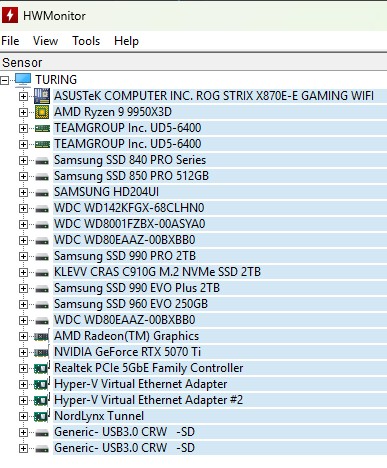 HW Monitor - all the components listed as briefly as possible
 Turing 2025/2026 - now with Windows 11, taking updates
HoodRiver
It is one of those things with me: now that the RAM prices are up and I have an extra 64 GB of RAM which I could be using, I looked at my other boxes and options. I had this 2014 box (Obsidian 550D - mid tower purchased for $140 in October 2014) which I had been running ESXi 6 on, but it only had 16 GB of RAM, and had been problematic; it would occasionally crash and had to be rebooted. This is where I have been typically running two VMs, one is a domain controller for local tapkan.local. Before coming to this though, I have two other DELL servers which I briefly talked about in this post; the second Dell is a T330 that is still running ESXi 6, but between the two, I have migrated the Windows domain controllers from Server 2019 to Server 2025. It took brand new OS installations, but since they are VMs, it went relatively smoothly. The only issue was the clock on the DELL T440 could not be network time configured, and there was a drift of a few minutes which took a while to debug and fix. But both domain controllers are humming along nicely so I didn't need the other domain controller running on this box.
Noticing that, first I opened the case and installed the RAM sticks; the BIOS picked up the RAM sticks but somehow I lost the ESXi Server. At this point, I didn't care too much. Well, remember SuSE? I have been looking forward to giving this OS a bare metal go locally. So I downloaded the openSUSE Tumbleweed and gave it a go. There was one 250 GB NVMe, one 500 GB and 2 TB two separate HDs. Total of three drives.
So I went all in with OpenSUSE Tumbleweed; the video driver was again unfortunately NVIDIA with just enough to run. I got the system to run okay but video was problematic. I got most things configured then a sudo zypper dup came and wiped out the video drivers. Awful default, was about to give in, but found out a way to recover.
 Say hello to OpenSUSE Tumbleweed
I also started with KDE Plasma on the first install. But performance was not that great; same story, the GPU needed an upgrade. But my 64 GB of RAM were in place and humming along.
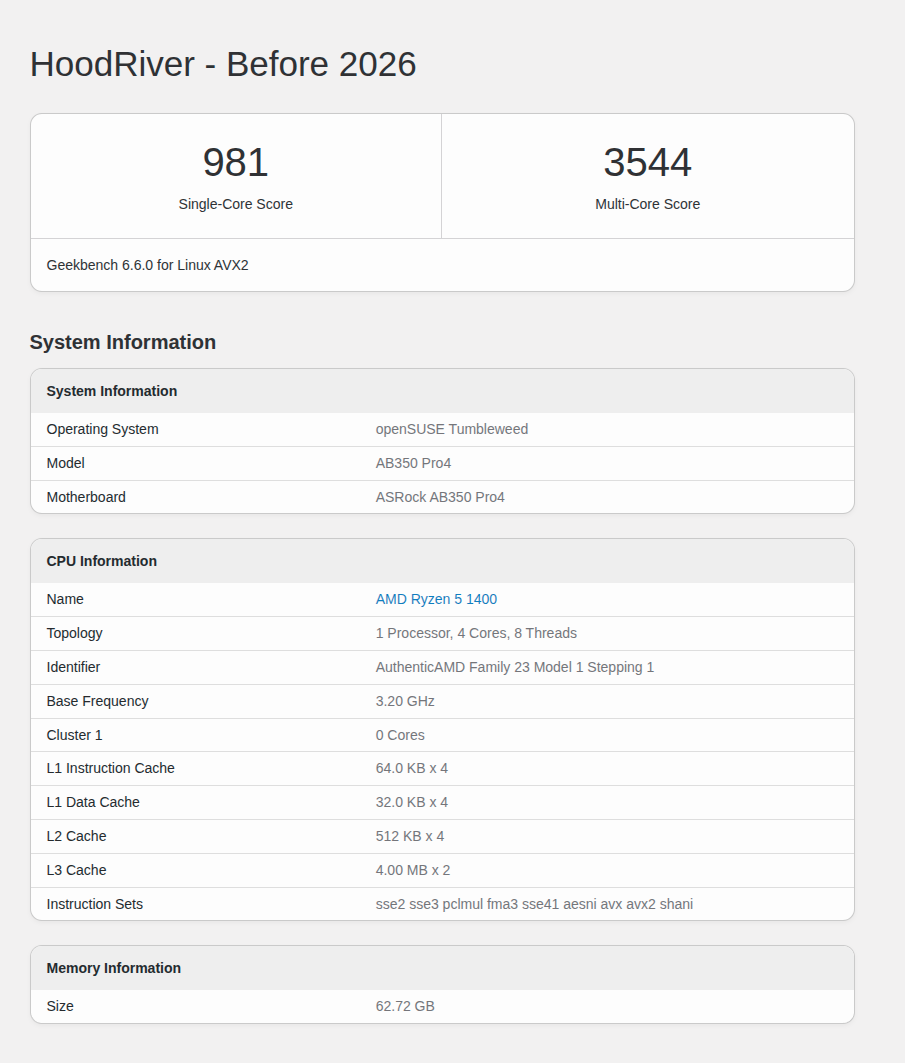
If I were to keep this system alive the whole time, it would have been okay, but the display wake up was a serious issue. The taskbar would disappear, so would the background. You can tab around the windows, but it was a very sad experience. Recovery was this command: systemctl restart --user plasma-plasmashell. Well, I started looking into upgrading this box on the cheaper side while reusing my DDR4 RAM sticks. The GPU option supporting AMD Radeon vs Nvidia was this option:
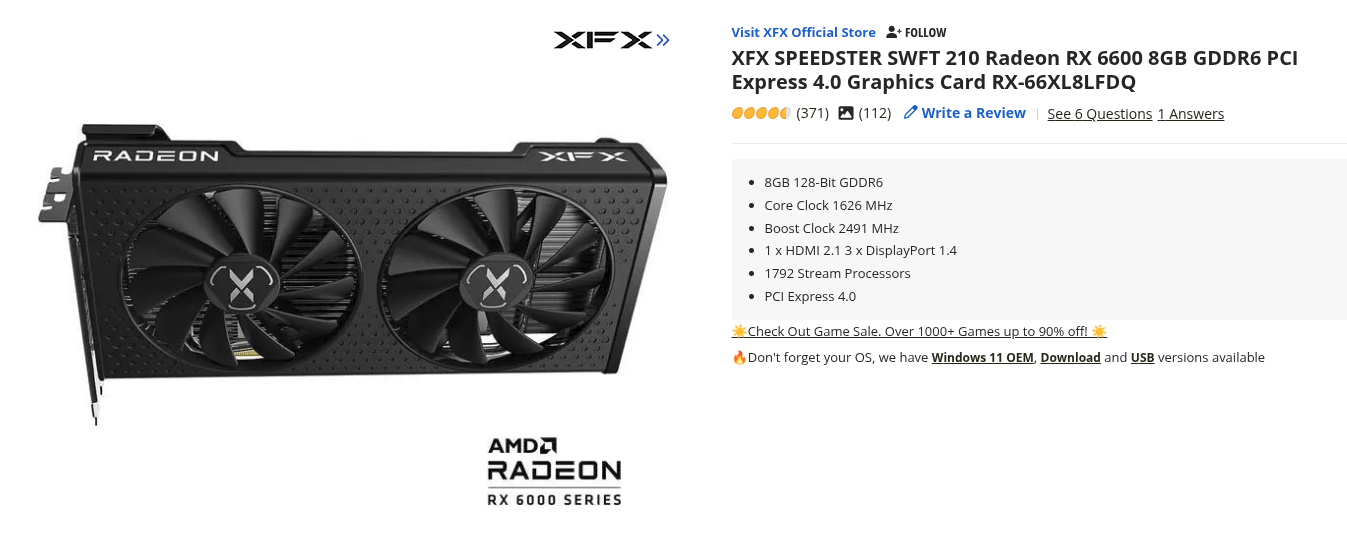 Now out of stock at NewEgg, but I purchased it for $250 or so
After this, in order to get a bit more speed keeping the same AM4 socket, I went with this CPU: AMD Ryzen 5 5600X 6-core at 65W. This would still be at least 2x faster than what I had and would solve the screen wake up/shutdown business.
| Component | Cost |
|---|---|
| XFX SPEEDSTER SWFT 210 Radeon RX 6600 8GB GPU | $272 |
| AMD Ryzen 5 5600X 6-core, 12-thread CPU | $241 |
| Samsung 990 EVO Plus SSD 1TB | $180 |
| WD 6TB Blue PC Internal HDD - 5400 RPM (Renewed) | $143 |
| ASUS TUF Gaming B550-PLUS WiFi II AMD AM4 | $125 |
| CORSAIR RM750e ATX 3.1 PCIe 5.1 750W PSU | $111 |
| Hyper 212 Black CPU Cooler | $30 |
| Total: | $1,102 |
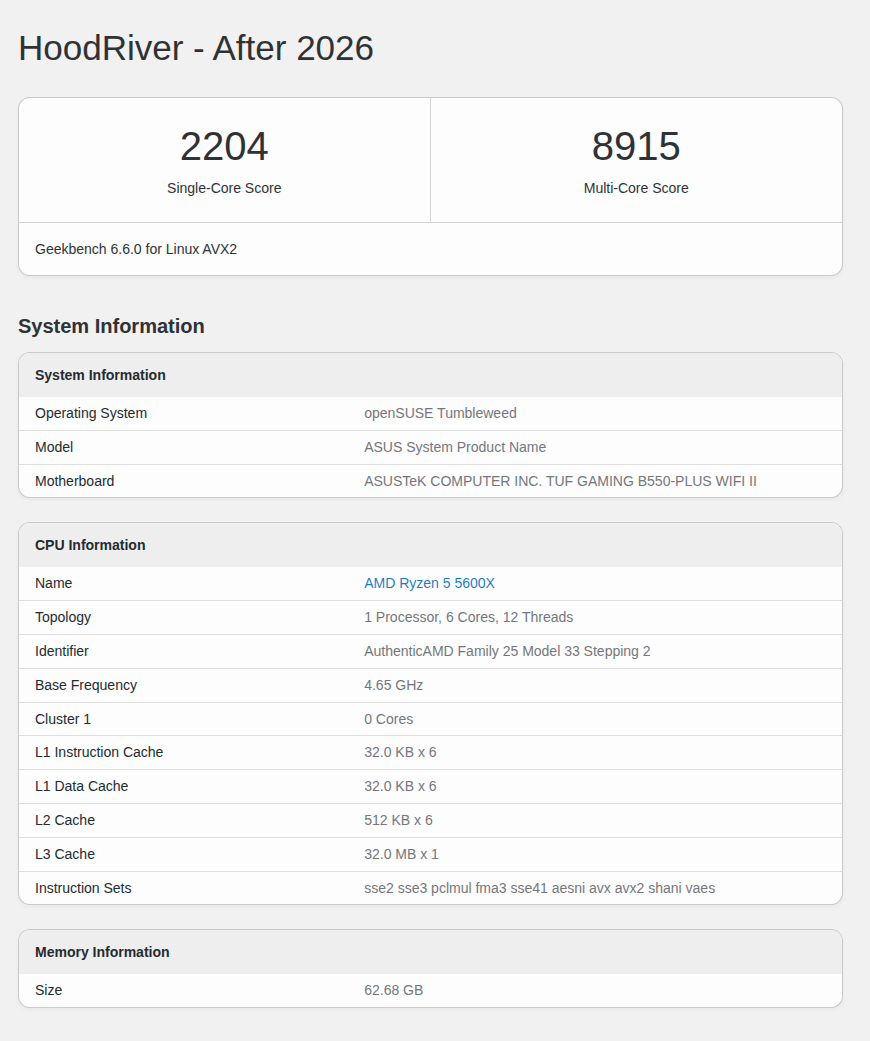
The motherboard upgrade had to happen due to the current motherboard being flaky with the new CPU and it made sense from an upgrade point of view. I had to update the BIOS quite a bit just to support this new CPU, but this setup felt very Linux friendly. No display driver issues; I am running it on a single monitor at 60 Hz at the moment, but eyeing faster refresh rate 34" displays to see what becomes available in a few months.
Also another reuse on this system was the 1 TB NVMe stick from Turing which had the original Windows 10 OS for over 8 years. I paved another Windows 11 on this which could be an option on boot. The boots on this are actually faster than Turing, probably due to fewer peripherals to go through. Also a modern motherboard; that was a good call.
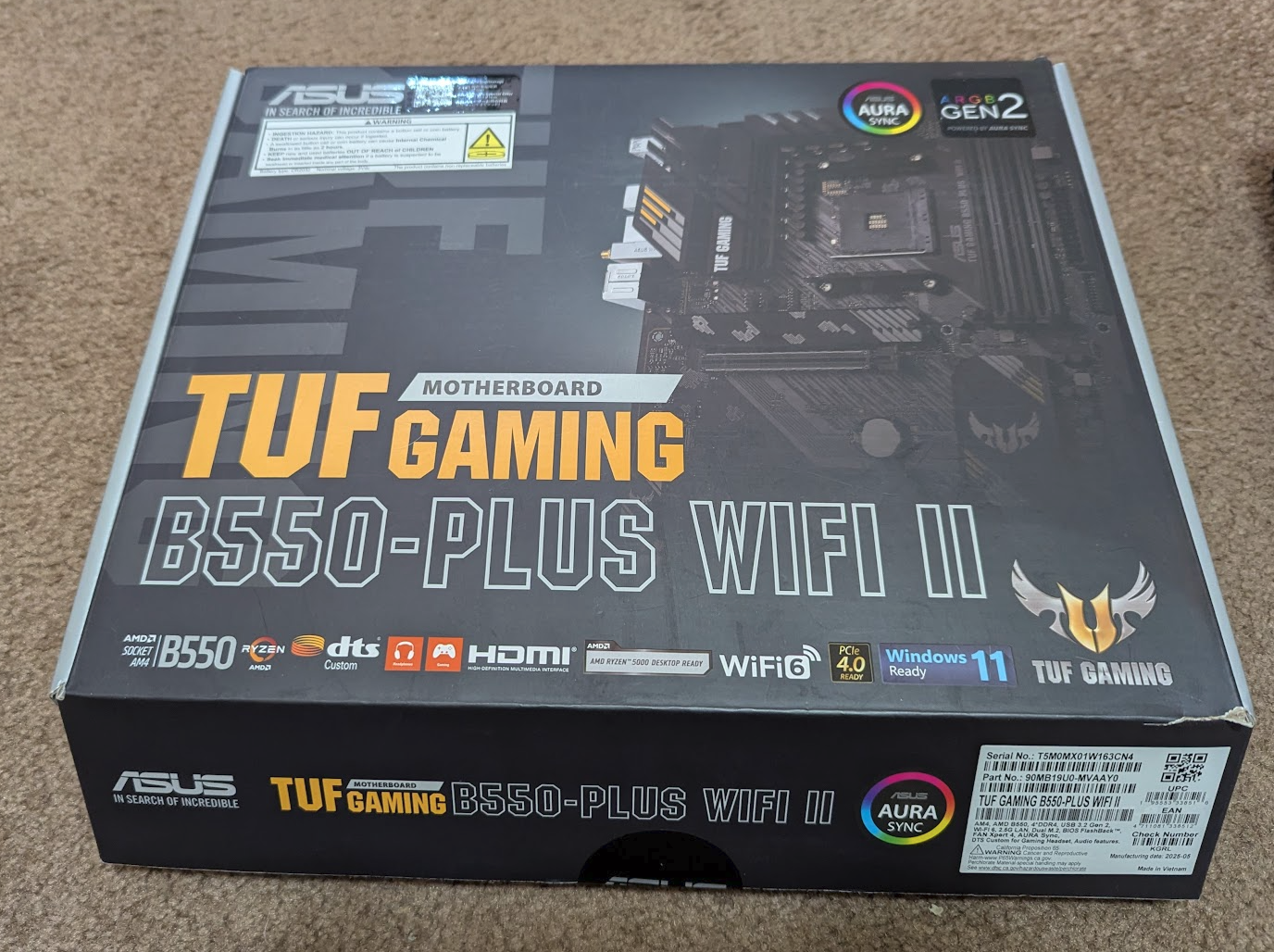 TUF Gaming Motherboard - first time ever tempted to try out new games; also Steam runs great thus far.
So that is it. All in all, the upgrades happened over a six month period, troubleshooting, installing OS, programs, and debugging kernels. One thing to note is to always install Windows first on a new system. Windows boot loader is quite greedy and does not play well with Linux. Install the Linux system after Windows. I had to reinstall openSUSE on HoodRiver (which was fine since I switched to Wayland vs KDE Plasma, better GPU driver support) since Windows install overwrote the BIOS bootloading on a drive it was not supposed to be touching. Don't trust Windows with your BIOS.
If you can, dedicate separate OS installs on separate drives helps. Isolate your data on other drives than the OS, and have a plan-B 😉
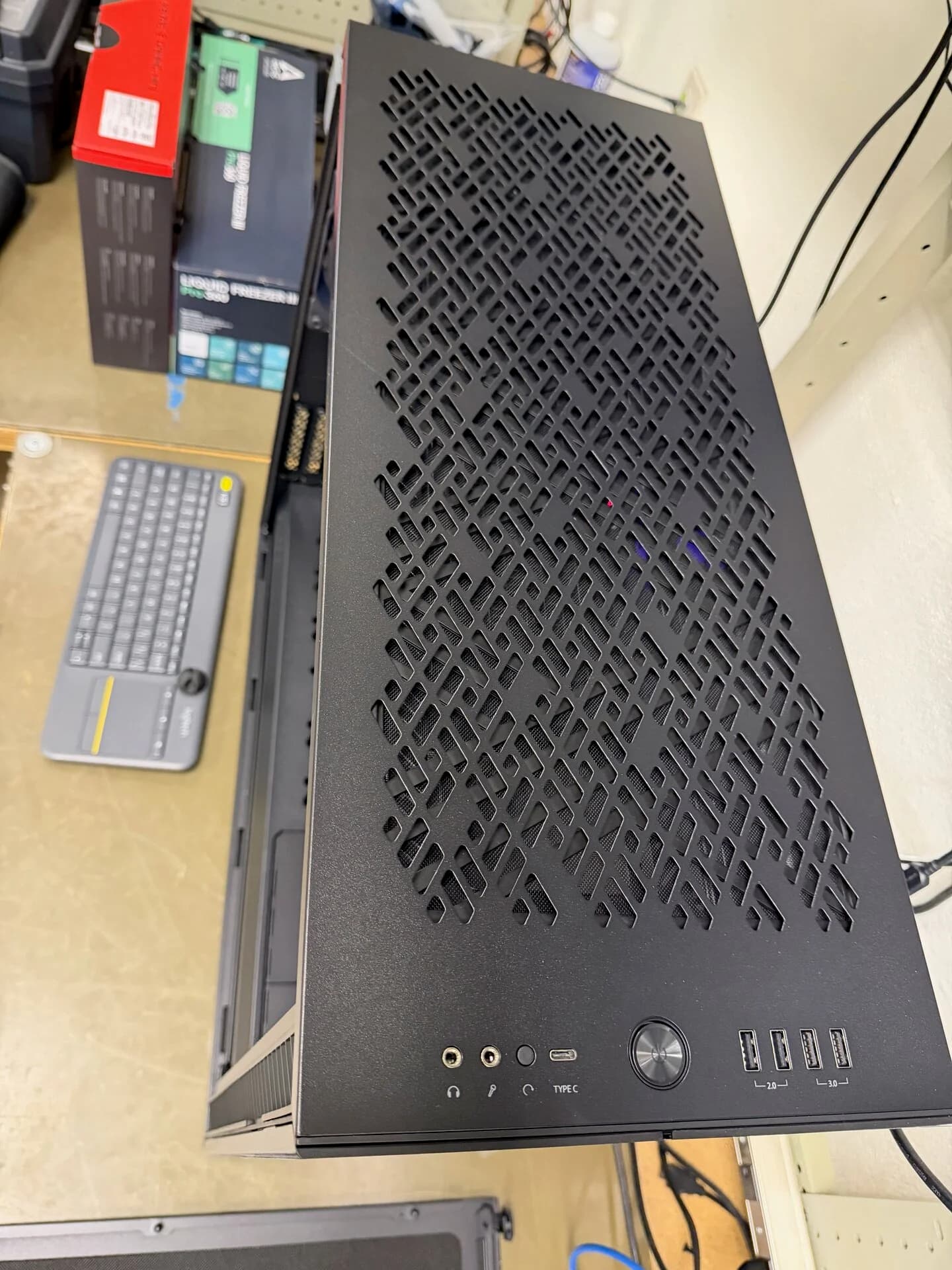
Turing Rebuild - parts are selected and built at Microcenter
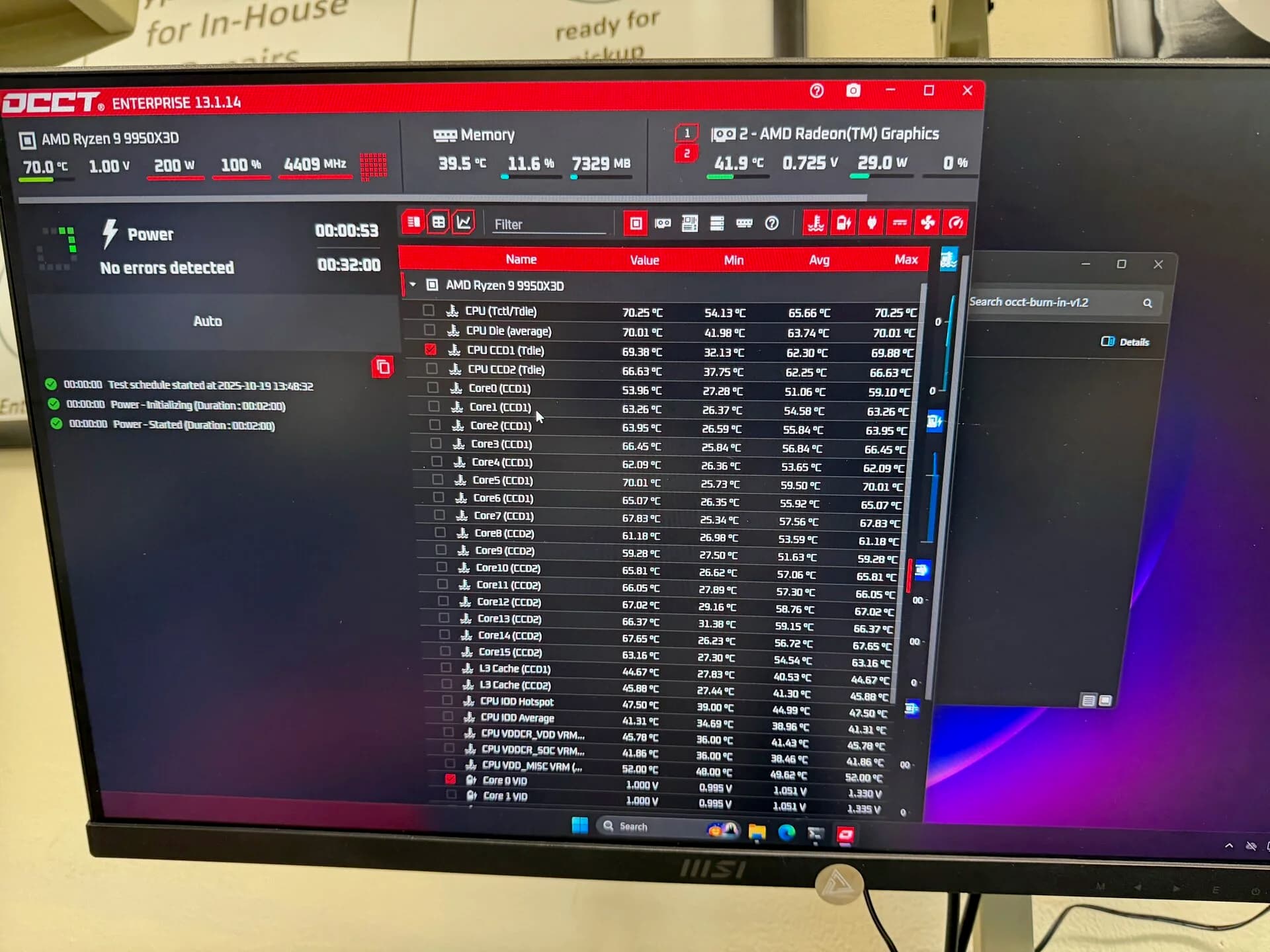
AMD Ryzen 9 9950X3 passing all the spec tests
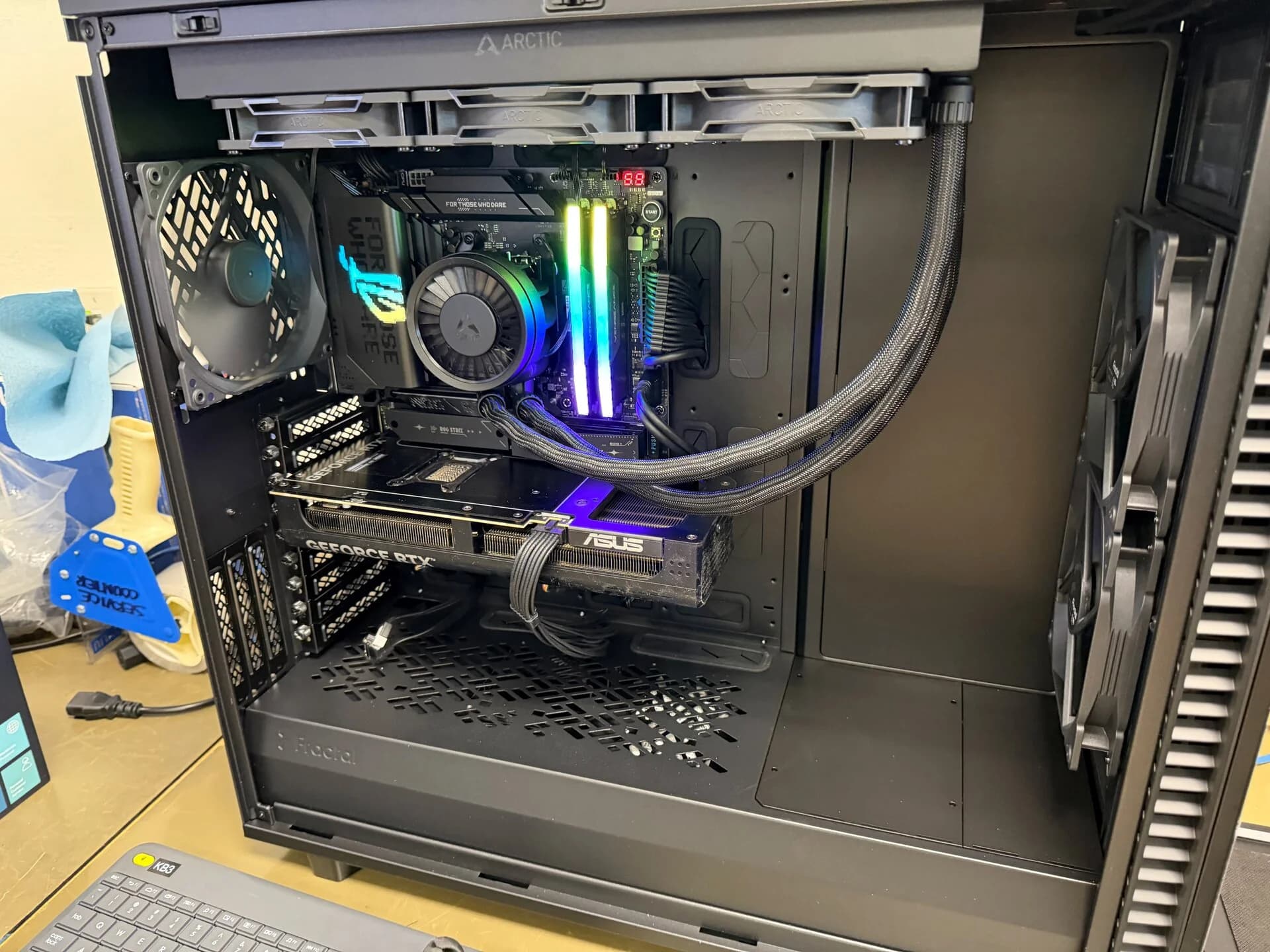
Internals - never cared for the RGB, the Corsair 32 GBs will be replaced with 64 GBs sticks
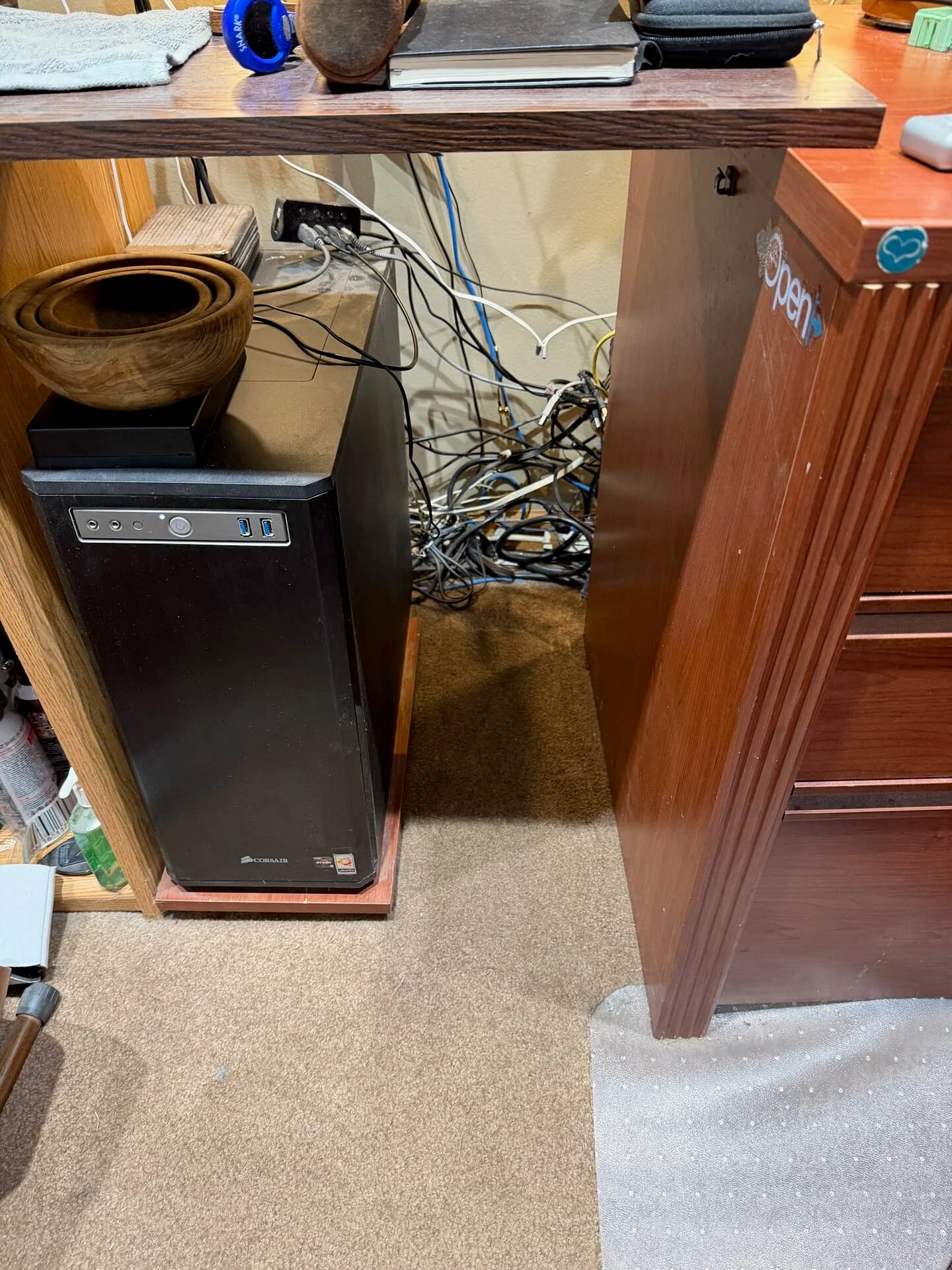
On the left is Hoodriver and the slot where Turing lives
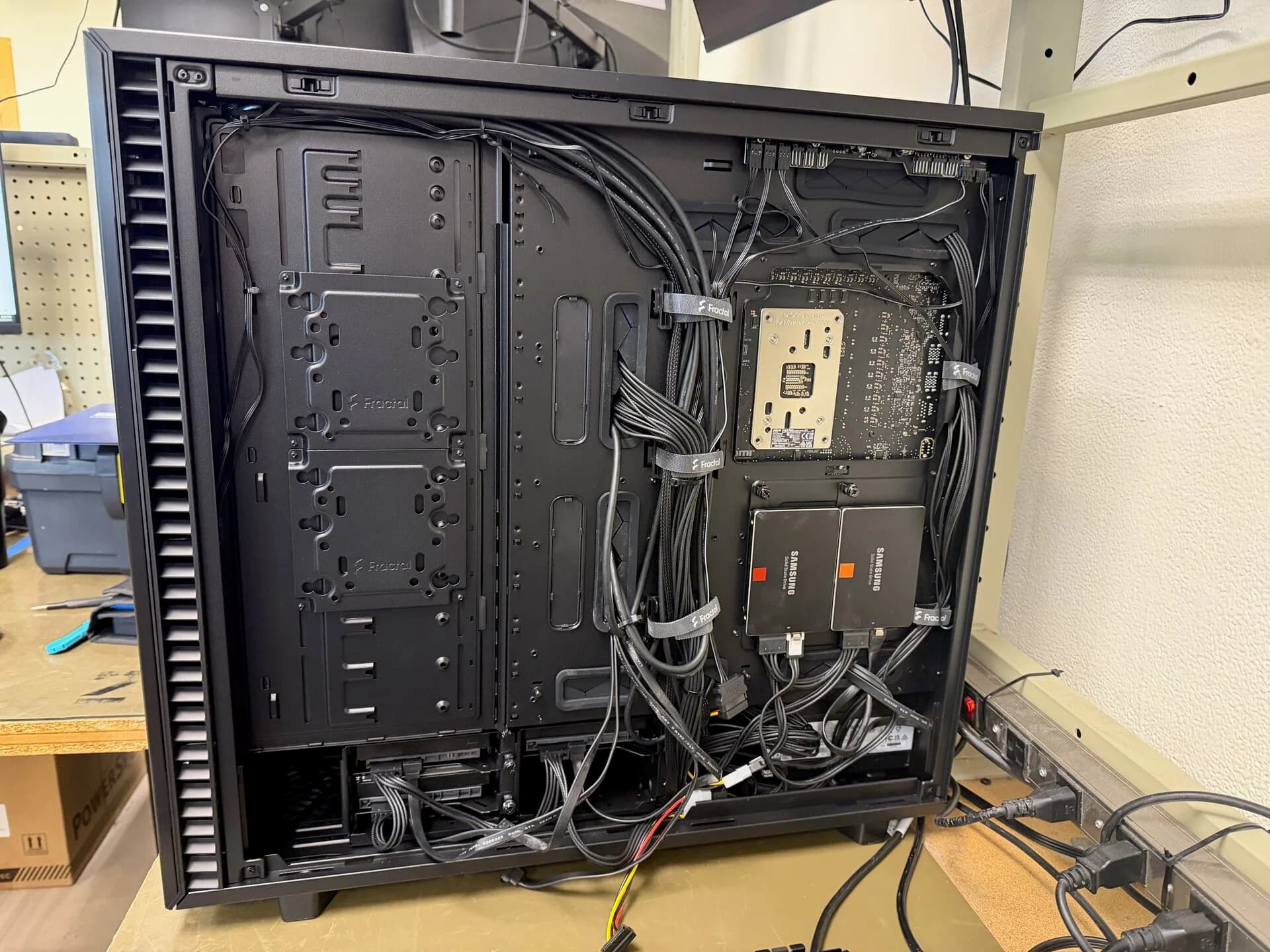
HDs management on this case is a bit different, but 4 large capacity 3.5 inch HDs are connected, and two SSDs. Also on the front, I have 3 NVMe M.2 drives with multiple boot selections
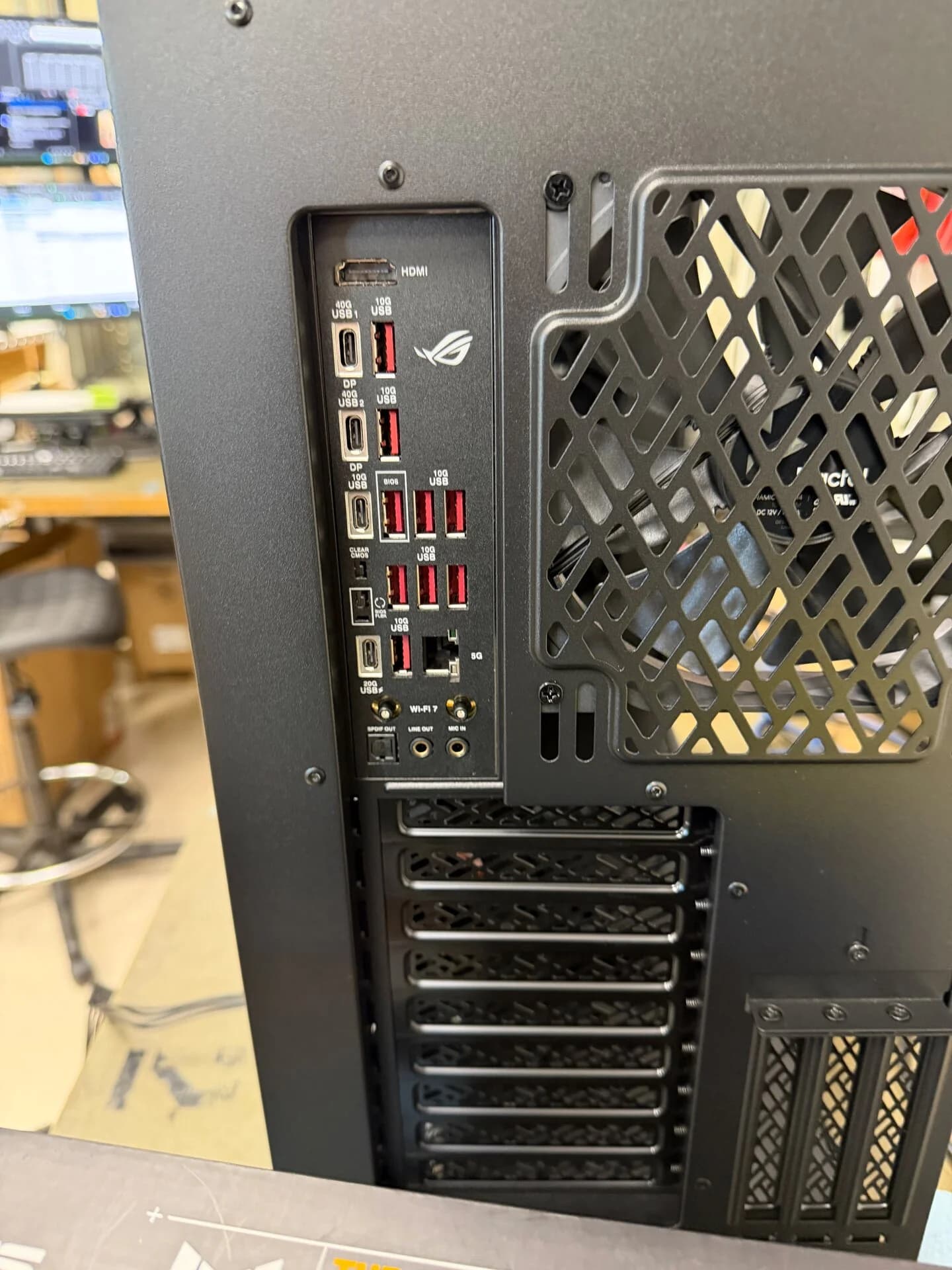
Ample modern USB-C / USB-A, HDMI, optical connections are present. Good to go